
Table of Contents
ToggleHome networking for beginners doesn’t have to feel overwhelming. A home network connects all devices in a household, computers, phones, smart TVs, and gaming consoles, so they can share an internet connection and communicate with each other. Whether someone wants to stream movies in the living room, work from a home office, or set up smart home devices, understanding the basics of home networking makes everything easier.
This guide breaks down home networking into simple, actionable steps. Readers will learn what equipment they need, how to set everything up, and how to keep their network secure and running smoothly.
Key Takeaways
- Home networking for beginners starts with three essential devices: a modem, router, and ethernet cables.
- Setting up a basic home network takes about 30 minutes and involves connecting your modem, configuring your router, and securing your Wi-Fi.
- Always change default router passwords and use WPA3 or WPA2 encryption to protect your home network from hackers.
- Position your router centrally in your home and use the 5 GHz band for faster wireless speeds on nearby devices.
- A home network allows all your devices to share one internet connection, transfer files, and communicate with smart home gadgets.
- Beginners can upgrade with mesh systems or network switches as their home networking needs expand over time.
What Is a Home Network and Why Do You Need One?
A home network is a group of devices connected together to share resources and internet access. These devices include laptops, smartphones, tablets, printers, smart speakers, and security cameras. The network allows them to communicate with each other and access the internet through a single connection.
Most households today rely on a home network without even thinking about it. Streaming Netflix on the TV, printing documents wirelessly, or checking a smart doorbell camera, all of these actions depend on a functioning home network.
Here’s why home networking matters:
- Internet sharing: One internet connection serves multiple devices simultaneously.
- File sharing: Users can transfer files between computers without USB drives.
- Device communication: Smart home gadgets like thermostats and lights work together.
- Cost savings: One printer or storage device can serve the whole household.
For beginners, the good news is that modern home networking equipment handles most of the technical work automatically. Setting up a basic network requires just a few pieces of hardware and some straightforward configuration.
Essential Equipment for Your Home Network
Building a home network requires a few key pieces of equipment. Most beginners can get started with just two or three devices.
Modem
The modem connects to the internet service provider (ISP) and brings internet access into the home. Many ISPs provide a modem as part of their service, though users can also purchase their own. The modem converts the signal from the ISP into data that home devices can use.
Router
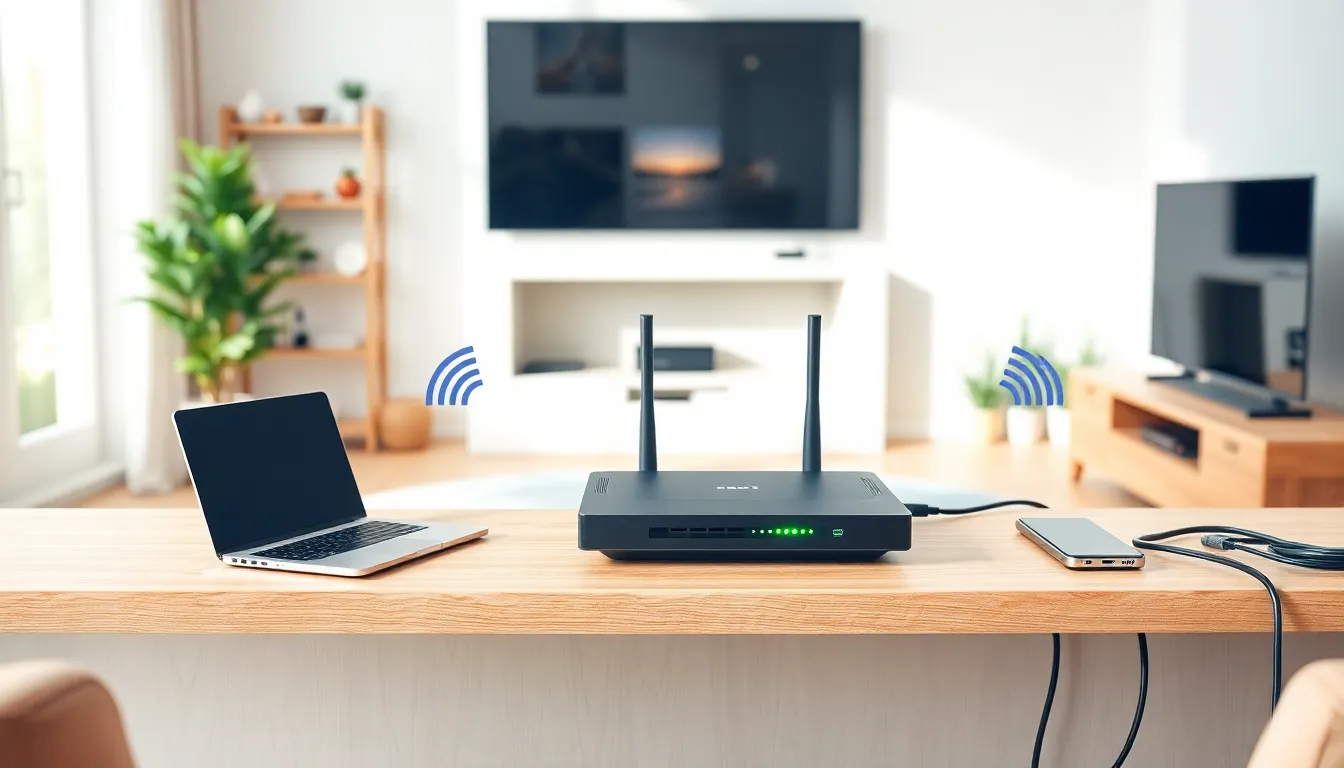
The router is the brain of any home network. It directs traffic between devices and manages the connection to the internet. Routers create both wired and wireless connections. Most modern routers include built-in Wi-Fi, which broadcasts a wireless signal throughout the home.
Some ISPs offer combination modem-router units, often called gateways. These work fine for basic home networking needs.
Ethernet Cables
Ethernet cables provide wired connections between devices. They offer faster, more stable connections than Wi-Fi. Desktop computers, gaming consoles, and smart TVs often benefit from wired connections. Cat5e or Cat6 cables work well for most home networking setups.
Optional: Network Switch or Mesh System
A network switch adds extra ethernet ports if the router doesn’t have enough. A mesh Wi-Fi system extends wireless coverage in larger homes where a single router can’t reach every room. Beginners typically don’t need these right away, but they’re useful upgrades as home networking needs grow.
How to Set Up Your Home Network Step by Step
Setting up a home network takes about 30 minutes for most beginners. Follow these steps to get connected.
Step 1: Connect the modem. Plug the modem into the wall outlet (cable, phone, or fiber connection depending on the ISP). Connect the power cable and wait for the modem to fully boot up. Status lights will indicate when it’s ready, usually solid green.
Step 2: Connect the router. Use an ethernet cable to connect the modem to the router’s WAN or Internet port. Power on the router and wait for it to initialize. This typically takes two to three minutes.
Step 3: Access the router settings. Open a web browser and type the router’s IP address (commonly 192.168.0.1 or 192.168.1.1). The router’s manual lists the exact address. Log in using the default username and password printed on the router.
Step 4: Configure the Wi-Fi network. Create a network name (SSID) and password. Choose WPA3 or WPA2 security, never leave the network open. Pick a strong password with letters, numbers, and symbols.
Step 5: Connect devices. On each device, open Wi-Fi settings, find the new network name, and enter the password. For wired devices, plug ethernet cables directly into the router’s LAN ports.
Step 6: Test the connection. Open a browser and load a website. If it works, the home network is ready. If not, restart the modem and router, then try again.
Tips for Improving Network Security and Performance
A properly secured home network protects personal data and prevents unauthorized access. A well-optimized network delivers faster speeds and fewer connection drops.
Security Best Practices
- Change default passwords: Replace the router’s default admin password immediately. Hackers know these defaults.
- Use strong Wi-Fi encryption: WPA3 provides the best protection. WPA2 remains acceptable if WPA3 isn’t available.
- Update firmware regularly: Router manufacturers release updates that fix security holes. Check for updates every few months.
- Create a guest network: Give visitors a separate network so they can’t access personal devices or files.
- Disable remote management: Unless specifically needed, turn off remote access to the router’s settings.
Performance Optimization
- Position the router centrally: Place it in the middle of the home, away from walls and metal objects. Elevation helps, shelves work better than floors.
- Reduce interference: Keep the router away from microwaves, cordless phones, and baby monitors. These devices use similar frequencies.
- Use the 5 GHz band: Most routers broadcast two frequencies. The 5 GHz band offers faster speeds, while 2.4 GHz reaches farther. Use 5 GHz for devices close to the router.
- Limit bandwidth hogs: Video calls and 4K streaming consume significant bandwidth. Schedule large downloads for off-peak hours.
- Restart periodically: Rebooting the router once a month clears memory and can improve performance.
Home networking doesn’t require constant attention, but occasional maintenance keeps everything running well.


